
Canva provides pre-designed frames to allow use to give you custom templates for your label needs.
To use:
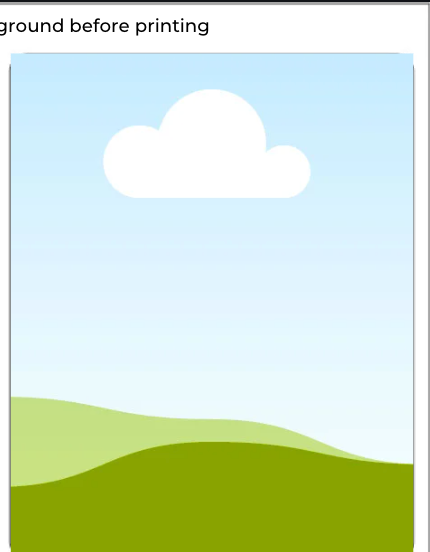
Example of a drag and drop frame in Canva.
Upload your pre-designed label into the uploads section of Canva
Click on the image of the label you want to drag to the template.
Drag the image into one of the Canva empty frames. You will know it is an empty frame by its appearance (an illustration of a blue sky with clouds and rolling hills beneath.
Repeat the drag and drop for each label you would like to print.
Don’t forget to delete the background outlines before printing.
If you don’t already have a pre-designed label, you can easily create one directly in Canva.
Step 1: Create a New Design
Open Canva
Click “Create a Design” (top right corner)
Select “Custom Size”
Enter your label dimensions
Example: 2" x 4" or 3" x 3"
Click “Create New Design”
Tip: Make sure your dimensions match your Dashleigh label size exactly for proper alignment.
Step 2: Design Your Label
Now you can design your label using Canva’s tools:
Text: Add names, ingredients, or categories
Fonts: Choose styles that match your aesthetic
Elements: Add icons, shapes, or decorative details
Colors: Coordinate with your home or brand style
Take your time here—this is where your label becomes personal and polished.
Step 3: Download Your Design
Click “Share” (top right corner)
Select “Download”
Choose file type:
PNG (recommended for drag-and-drop use)
or PDF Print (for highest print quality)
Click Download
Step 4: Upload into Your Drag & Drop Template
Open your Dashleigh Drag & Drop Template
Go to “Uploads” in the left sidebar
Click “Upload Files” and select your label design
Drag your design into one of the frames
Your design will automatically snap into place.
Step 5: Fill Your Sheet
Pro Tips for Best Results
Keep important text away from the edges (safe margin)
Use high-contrast colors for readability
Print a test page before using label paper
Click your placed design
Copy and paste it into the remaining frames
Or drag it into each frame individually
Everything will stay perfectly aligned for printing.