
Canva Help Center
Quick links and guide to the Canva help center. We have provided an organized link tree to the most helpful Canva design articles available. Use these tips to learn how Canva works.
Dashleigh + Canva Templates
Choose between our three template options. To get help using Canva to design, please continue to scroll.
Blank Canva Sheets
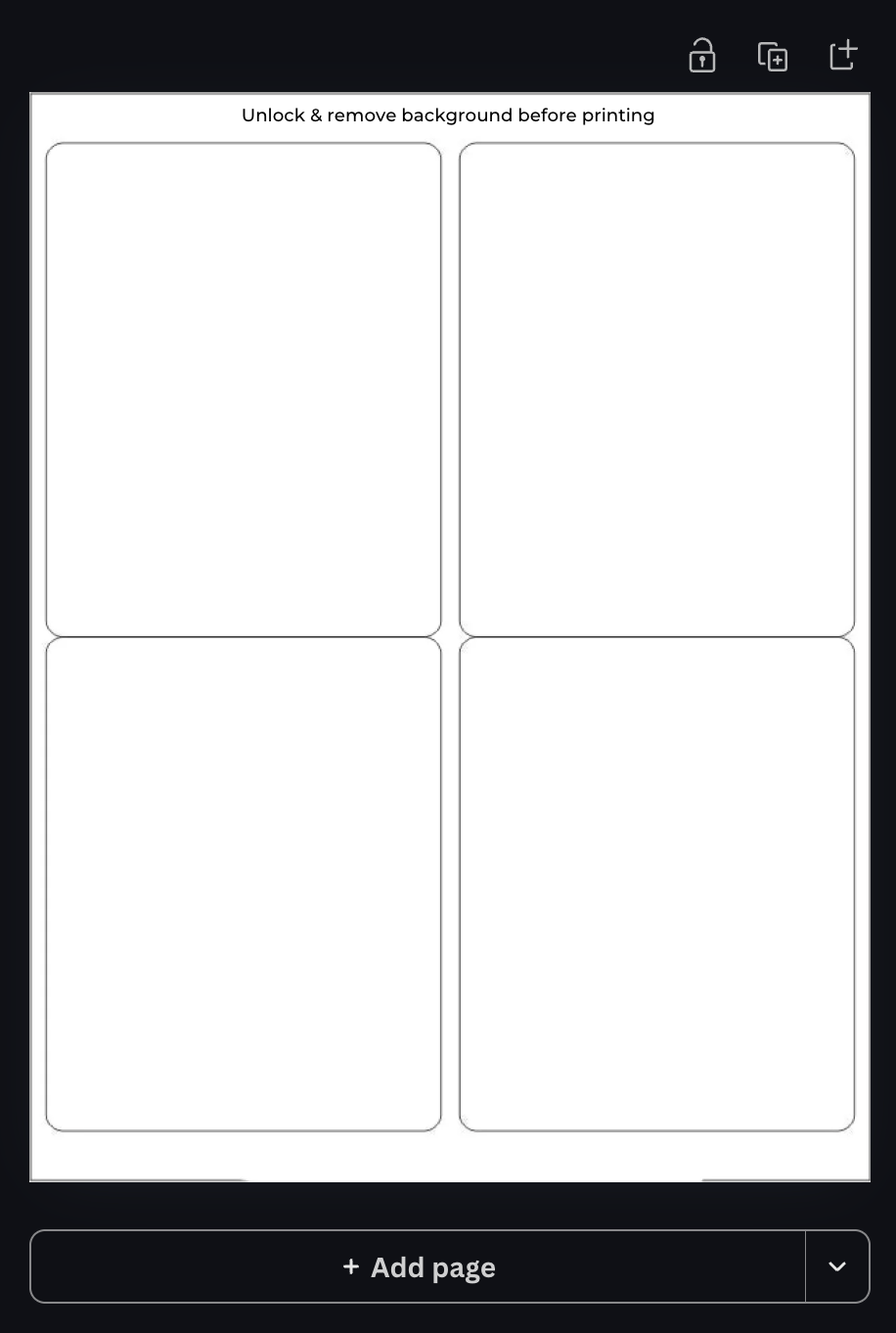
- Open the Canva template link
- Add your text, colors, or images inside each outline
- Duplicate designs across the sheet as needed
- Delete the background, download and print
Help: Getting Started with Canva
Drag and Drop Template
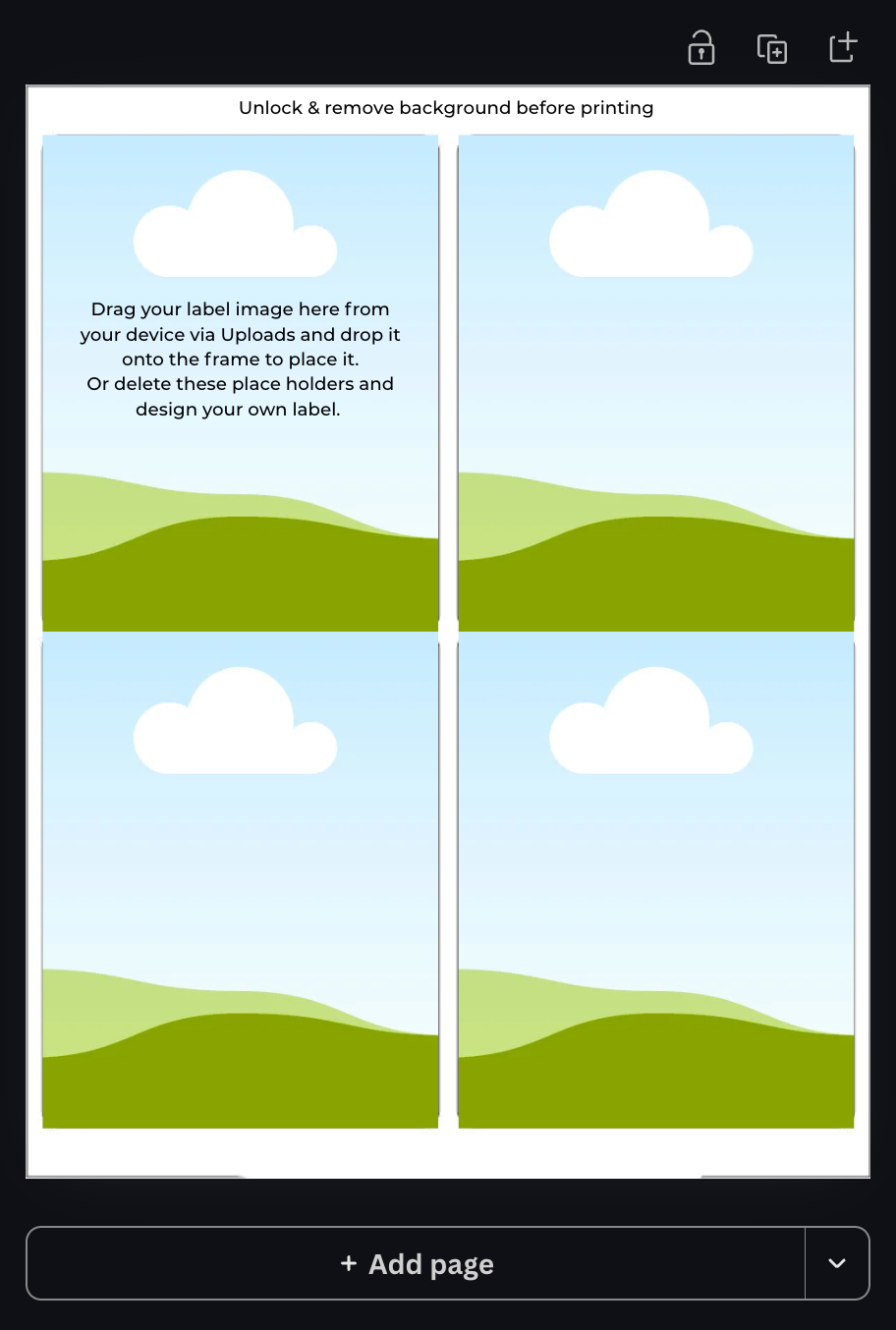
- Open the Canva template link
- Drag your design into each frame
- Adjust positioning inside the frame if needed
- Download and print
Single Image Template
- Open the Canva template link
- Design your label
- Download your design
- Manually place it into a sheet template (if printing multiples)
Create Your Own Label Design in Canva
If you don’t already have a pre-designed label, you can easily create one directly in Canva.
Step 1: Create a New Design
Open Canva
Click “Create a Design” (top right corner)
Select “Custom Size”
Enter your label dimensions
Example: 2" x 4" or 3" x 3"
Click “Create New Design”
Tip: Make sure your dimensions match your Dashleigh label size exactly for proper alignment.
Step 2: Design Your Label
Now you can design your label using Canva’s tools:
Text: Add names, ingredients, or categories
Fonts: Choose styles that match your aesthetic
Elements: Add icons, shapes, or decorative details
Colors: Coordinate with your home or brand style
Take your time here—this is where your label becomes personal and polished.
Step 3: Download Your Design
Click “Share” (top right corner)
Select “Download”
Choose file type:
PNG (recommended for drag-and-drop use)
or PDF Print (for highest print quality)
Click Download
Step 4: Upload into Your Drag & Drop Template
Open your Dashleigh Drag & Drop Template
Go to “Uploads” in the left sidebar
Click “Upload Files” and select your label design
Drag your design into one of the frames
Your design will automatically snap into place.
Step 5: Fill Your Sheet
Click your placed design
Copy and paste it into the remaining frames, or drag it into each frame individually
Instructions:
Click “Share” (top right corner)
Select “Download”
Choose file type:
PNG (recommended for drag-and-drop use)
or PDF Print (for highest print quality)
Click Download
Everything will stay perfectly aligned for printing.
Pro Tips for Best Results
Keep important text away from the edges (safe margin)
Use high-contrast colors for readability
Print a test page before using label paper
Elements
Get to know the basic elements of Canva that you can use to create your designs.
Getting started
Starting with Canva is easy. Design from scratch or using one of Canva’s ready-to-go templates.
Templates
Need a little design boost, or inspiration to create your own design, Canva has you covered with templates.
Images
Whether you need an image from Canva or have your own, adding graphics is easy and effortless.
Text and fonts
After the background is set, send the perfect message using customized text and fonts in Canva.
Backgrounds
Create an impactful background for your creative designs. A few tips and tricks to build a perfect foundation.
Managing designs and folders
As you grow, you may need some organization to keep your projects running smoothly. A few tips for keeping everything neat.
Pages
Create multiple designs and artboards, or beautiful presentations for your business or website using Canva’s page function.